
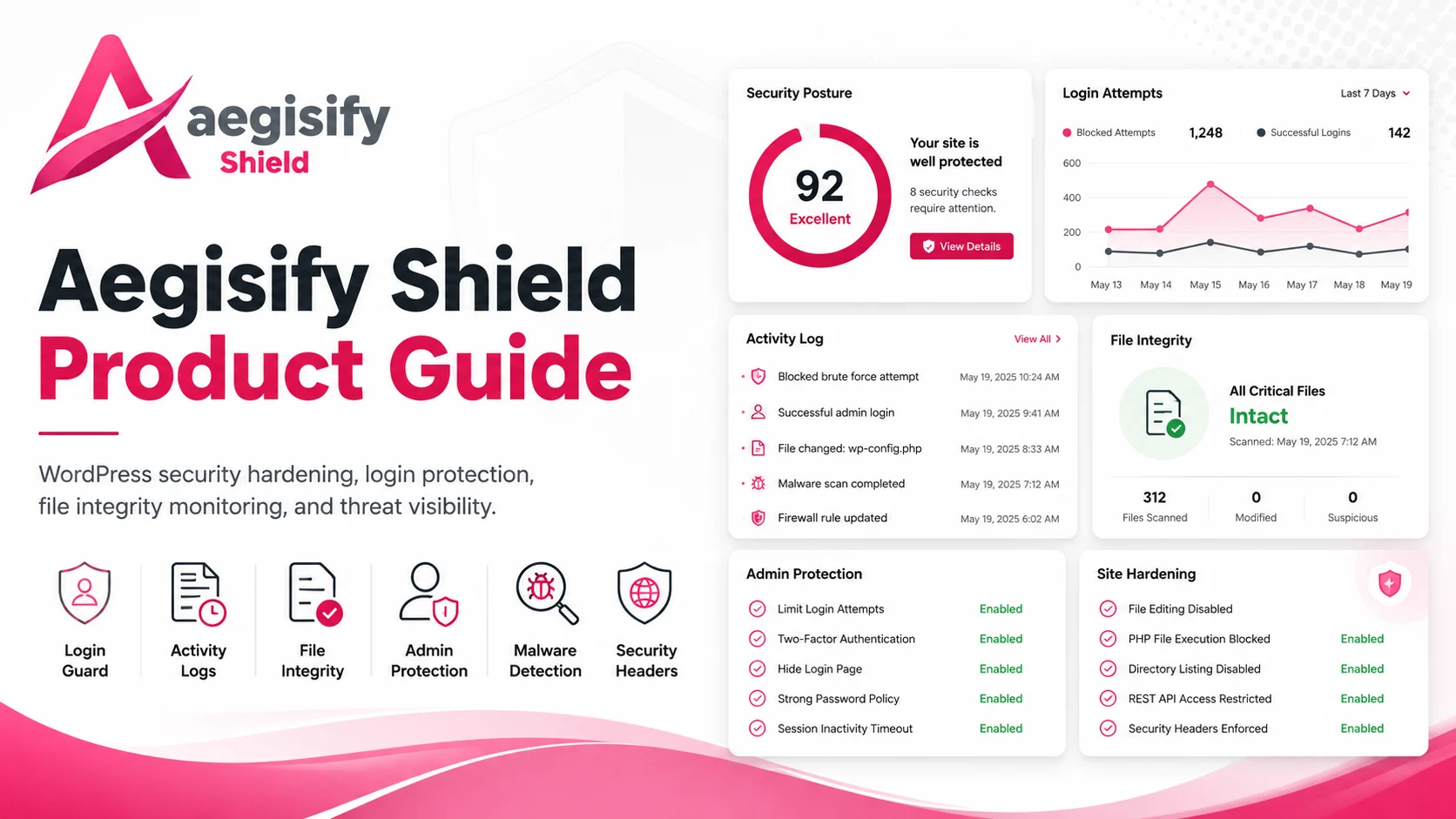
See the security activity that matters before small WordPress weaknesses become larger incidents.
Aegisify Shield unifies security intelligence, activity monitoring, login and administrator protection, file-integrity detection, WordPress hardening, browser security headers, malware heuristics, core checksum verification, database tools, sensitive-data controls, alerts and operational reporting into one layered WordPress security workspace.
Aegisify Product Guide
Aegisify Shield Security Product Guide
A practical, current guide to WordPress security visibility, privileged-access protection, file monitoring, hardening, browser policies, malware review, database tools, and selected data-handling controls.
Aegisify Shield is a modular WordPress security and site-protection plugin built to help administrators see important security activity, reduce common attack paths, protect privileged access, review unexpected file changes, apply browser-level controls, investigate suspicious code, and maintain a defensible operating baseline. This guide documents the features that are present in the reviewed 7.2.19 package and clearly separates operational controls from interface placeholders or future-release items.
Important: Aegisify Shield strengthens supported WordPress controls, but no WordPress plugin can guarantee that a website will not be compromised. Use it as part of layered security that also includes secure hosting, a web application firewall where appropriate, tested backups, timely updates, least privilege, monitoring, and an incident-response plan.
Table of Contents
- About This Guide
- Version, Requirements, and Scope
- What Changed in the Current Product
- Security Model and Operating Principles
- Installation and First Configuration
- Administration Navigation
- Dashboard and Security Intelligence
- Activity Log
- Login Guard
- File Integrity, File Change Monitoring, and Critical Files
- WordPress Hardening
- Security Headers
- Malware Scan and Incident Review
- Database Tools
- Data Compliance Controls
- License, Registration, and Email Delivery
- Operational Runbooks
- Troubleshooting
- Frequently Asked Questions
- Glossary
- Official References and Further Reading
About This Guide
This product guide is written for WordPress site owners, administrators, agencies, developers, managed-service providers, ecommerce operators, and security-conscious teams responsible for production WordPress environments. It is intended to explain what each Aegisify Shield module does, how to configure it safely, what evidence to review, and where human judgment remains necessary.
The guide is based on a static review of the Aegisify Shield 7.2.19 package, including its administration pages, modules, licensing controls, alerting components, reports, settings, and published package metadata. Static review confirms that code and interface paths exist; it does not replace functional validation on a live WordPress installation with the site’s actual database, hosting configuration, themes, plugins, reverse proxies, SMTP service, cron behavior, and traffic.
Intended outcomes
Use this guide to:
- establish a clear security baseline before enabling stricter controls;
- protect administrator-equivalent access with owner-controlled approval;
- review login pressure, lockouts, high-impact changes, and suspicious IP behavior;
- detect file changes and prioritize high-value WordPress files;
- apply hardening and browser security headers gradually;
- run and interpret malware heuristics and WordPress core checksum checks;
- monitor database growth and prepare carefully for database-prefix operations;
- redact selected sensitive-data patterns from supported public text outputs;
- verify alerts, reports, logs, and recovery procedures before an incident.
Version, Requirements, and Scope
| Item | Reviewed value |
|---|---|
| Product | Aegisify Shield Security |
| Version / stable tag | 7.2.19 |
| WordPress requirement | WordPress 6.8 or later |
| Tested through | WordPress 6.9 |
| PHP requirement | PHP 8.2 or later |
| Package license | GPLv2 or later |
| Review date | July 10, 2026 |
What the package says about data handling
The reviewed package states that Aegisify Shield operates inside the WordPress installation and does not automatically transmit site data, inject public tracking beacons, or collect analytics. Optional registration, license activation, vulnerability-intelligence services, and administrator-configured email delivery can involve external communication. Review the on-screen explanation and your organization’s privacy requirements before enabling any optional connection.
What this guide does not claim
This guide does not claim that Aegisify Shield:
- prevents every compromise, credential theft, supply-chain issue, server intrusion, or application vulnerability;
- replaces hosting controls, a WAF, endpoint protection, backups, or professional incident response;
- proves compliance with PCI DSS, HIPAA, CUI handling rules, privacy laws, or another framework;
- can determine with certainty that every heuristic malware result is malicious;
- can safely quarantine or change production files without operational risk;
- makes a custom database prefix a complete security control.
What Changed in the Current Product
The prior public guide identifies version 7.1.16 and documents workflows that no longer match the reviewed 7.2.19 package. The current guide makes the following material corrections and additions.
Multi-factor authentication was removed from Aegisify Shield
Aegisify Shield’s package changelog states that the Shield-specific MFA, email verification, TOTP, backup-code, WebAuthn, QR enrollment, trusted-device, and MFA shortcode code and interfaces were removed in the 7.2.10-rev1 line. Therefore, this guide does not instruct users to enroll or enforce Aegisify Shield MFA. Authentication controls now focus on lockouts, interactive wp-admin access rules, IP restrictions, honeypot controls, and administrator-privilege protection.
Organizations that require MFA should use a separately validated identity or WordPress authentication solution and test interoperability with Aegisify Shield’s wp-admin access controls.
Administrator protection is owner-controlled and capability-aware
The current Login Guard includes an Account Owner workflow for reviewing attempted administrator creation, promotion, privileged custom roles, and administrator-equivalent direct capability changes. The package includes signed owner, baseline, and approval records; session revocation; role and user-metadata guards; best-effort database triggers where hosting permissions allow; and an integrity-rollback fallback when triggers are unavailable.
This is more than a simple “administrator role changed” log. The workflow is intended to prevent or contain unsupported privilege changes and require deliberate approval by the configured Account Owner.
Interactive wp-admin access has separate role and user controls
Aegisify Shield can restrict interactive wp-admin screens to the Account Owner, Administrators, multisite Super Administrators, and additional approved roles or exact usernames. The package explicitly excludes non-interactive WordPress requests such as REST, AJAX, admin-post, uploads, cron, and WP-CLI from this screen-access rule so front-end applications and background services are not treated like interactive dashboard visits.
Lockout accounting was hardened
The reviewed Login Guard checks active IP locks before WordPress completes password authentication and uses an atomic database update pattern for failed attempts. Once an IP is locked, additional requests should be rejected rather than continuing to inflate the failed-attempt counter or repeatedly extend the same lock. Cache entries are invalidated when lock state changes.
Critical Files is now integrated into File Integrity
A dedicated Critical Files workflow monitors a focused set of high-value WordPress files and execution surfaces. It supports baselines, protected snapshots, severity, change status, on-demand differences, WordPress core checksum context, approval and investigation actions, CSV export, and redaction of sensitive wp-config.php values in displayed differences.
Data Compliance is a current top-level module
The 7.2.19 package includes a Data Compliance page for selecting PII, PCI, PHI, and CUI patterns to mask in supported public WordPress text filters. It also includes optional encrypted fields in WordPress user profiles with masked display and authorized eye-to-reveal behavior. These are data-handling aids, not compliance certification.
Security intelligence is more visual
The Dashboard includes security-event counts and visual summaries for prevented or blocked actions, hostile IPs, threat categories, authentication pressure, high-impact changes, module risk, file-integrity bursts, and database-tool activity. These views help prioritize investigation but should be interpreted as operational signals, not a guarantee of security.
Some malware tabs remain placeholders
The Malware page displays tabs for scheduled scans, profile management, incremental quick scan, and Attack Story. In the reviewed build, the page itself identifies the scheduler, profile manager, incremental scan view, and dedicated Attack Story view as future-release items when their implementation is unavailable. Manual heuristic scans, WordPress core checksum checks, findings review, controlled actions, quarantine, logging, and incident reports are the current operational workflows.
Security Model and Operating Principles
Layer controls instead of relying on one feature
A useful Aegisify Shield deployment combines:
- visibility through the Dashboard and Activity Log;
- access controls through Login Guard and owner-approved privilege changes;
- change detection through File Integrity, File Change Monitor, and Critical Files;
- exposure reduction through Hardening and Security Headers;
- investigation through malware heuristics, core checksums, and incident reports;
- recovery readiness through independent, tested backups and hosting access.
Start with visibility, then enforce
On a production site, first confirm that logging, email delivery, baselines, administrator ownership, and recovery access work. Turn on restrictive controls one at a time. Test login, wp-admin, forms, REST-driven features, ecommerce checkout, scheduled tasks, uploads, integrations, and critical front-end pages after each material change.
Maintain an out-of-band recovery path
Before changing Login Guard, CSP, HSTS, database prefixes, or file actions, confirm that at least one authorized operator can reach:
- the hosting control panel;
- SFTP or SSH;
- the database administration interface;
- a known-good backup and restore procedure;
- a second administrator account where appropriate.
Use least privilege
Limit Administrator access to people and integrations that truly require it. Prefer purpose-specific roles. Review privileged custom roles and direct capabilities, not only users whose visible role name is “Administrator.”
Treat security scores as triage
A posture score can help identify configuration work and drift. It does not prove that a site is uncompromised or compliant. Investigate the underlying checks and evidence rather than optimizing only for a number.
Installation and First Configuration
Installation from WordPress
- Open Plugins → Add New.
- Search for Aegisify Shield Security.
- Select Install Now, then Activate.
- Open Aegisify Shield → Dashboard.
- Confirm the product version and review every module before enabling enforcement.
Manual installation
- Obtain the trusted Aegisify Shield ZIP package.
- In WordPress, open Plugins → Add New → Upload Plugin.
- Upload the ZIP, install it, and activate it.
- Confirm that the plugin folder is
aegisify-shieldand that the administration menu loads without PHP errors.
Recommended first 30 minutes
| Sequence | Action | Why it matters |
|---|---|---|
| 1 | Confirm a recent, restorable backup | File, header, login, and database changes can affect availability. |
| 2 | Open Dashboard and record the baseline | Gives you a starting posture and identifies updates or account risks. |
| 3 | Open Activity Log and confirm new events appear | Establishes that investigations will have evidence. |
| 4 | Configure the Account Owner and inspect privileged users | Prevents accidental approval of an unauthorized administrator. |
| 5 | Review Login Guard without enabling IP lockdown yet | Reduces self-lockout risk. |
| 6 | Run File Integrity and establish a known-good baseline | Makes future changes meaningful. |
| 7 | Review Critical Files and protected snapshots | Prioritizes high-impact configuration and execution files. |
| 8 | Run a manual malware heuristic scan and core checksum check | Establishes an initial review point. |
| 9 | Enable safe hardening controls individually | Reduces exposure while preserving rollback. |
| 10 | Configure basic headers; test CSP in report-only first | Browser policies can break legitimate resources. |
| 11 | Send a test alert email | A security alert that cannot be delivered is not operational. |
| 12 | Document recovery and escalation contacts | Reduces delay during an incident. |
Administration Navigation
| WordPress menu | Primary purpose | Important subareas |
|---|---|---|
| Dashboard | High-level posture, current health, events, and charts | Security score, core metrics, recent events, module links, threat/activity charts |
| Activity Log | Searchable audit trail and operational evidence | Log, Alerts, Saved Views, Sessions, Settings |
| Login Guard | Login pressure, lockouts, wp-admin access, privilege governance | Overview, Users, Lockouts & Rate Limits, Geo Rules & Honeypot |
| File Integrity | Baselines and file-change review | Integrity Scan, Critical Files, Scan History, File Change Monitor |
| Hardening | WordPress exposure-reduction controls | Core hardening, vulnerability scan, role/capability risk analysis |
| Security Headers | Browser-level security policy | Standard, CSP Builder, Profiles & Health |
| Malware Scan | Heuristic and checksum review | Manual scan, findings, controlled actions, incident reports; roadmap tabs may be visible |
| DB Tools | Database visibility and maintenance | Overview, Optimize, DB Prefix Manager |
| Data Compliance | Selected sensitive-data masking and encrypted profile fields | PII, PCI, PHI, CUI selections and previews |
| Settings, License & Upgrades | License, registration, recipients, SMTP, logs | License, Free vs Pro, Email Settings |
Dashboard and Security Intelligence
The Dashboard is the starting point for daily review. It combines posture checks, recent scan summaries, security events, and visual indicators across Aegisify Shield modules.
Overall Security Score
The score is labeled with states such as Secure, Needs attention, or High risk. Use it to find unresolved configuration conditions, not as proof that the site is safe. A high score can coexist with an unknown application vulnerability, stolen credential, compromised hosting account, or undetected malicious code.
Core Health Metrics
The reviewed package displays:
- WordPress version;
- PHP version;
- plugins with updates;
- themes with updates;
- number of Administrator accounts;
- database size;
- database-prefix status.
Pending updates and unexpected Administrator counts deserve prompt investigation. Apply updates through a controlled process with backups and testing rather than treating every update as a blind one-click action.
Recent scan context
The Dashboard can summarize the latest File Integrity mode and completion time and the latest malware scan type, file count, suspect count, completion time, and partial-scan status. Open the source module to review evidence before deciding that a result is benign or malicious.
Intelligent Threat and High Activity charts
| Chart | Review question |
|---|---|
| Prevented / Blocked Actions (24h) | Did enforced controls increase, and which module produced the activity? |
| Top Hostile IPs (24h) | Are repeated blocks concentrated on a small set of addresses? |
| Threat Categories by Module (24h) | Is the pressure primarily authentication, file, malware, header, or database related? |
| Auth Pressure (24h) | Are failed logins or lockouts increasing relative to successful logins? |
| High-Impact Changes (7d) | Were plugins or privileged accounts enabled, disabled, added, or removed? |
| Module Risk Index (7d) | Which control area requires investigation first? |
| File Integrity Bursts (14d) | Do change spikes align with approved releases or updates? |
| DB Tools High Activity (7d) | Did table growth or database maintenance activity change unexpectedly? |
Daily dashboard workflow
- Review the score and every “Needs attention” condition.
- Compare today’s login pressure and blocked activity with the site’s normal pattern.
- Investigate new privileged-account events immediately.
- Confirm file-change bursts match planned releases.
- Open the underlying Activity Log or module record before closing an alert.
- Record material findings in the organization’s ticketing or incident system.
Activity Log
The Activity Log provides a local audit trail for security-relevant WordPress actions. Typical records include successful and failed logins, logout events, plugin installation, activation, deactivation or update activity, user creation, role changes, module actions, scans, and selected database-tool operations.
Main Log
Use filters to narrow events by user, event type, date, IP address, or message content. Pagination helps with high-volume sites. Pro-labeled controls in the package include CSV export and advanced views.
A practical investigation sequence is:
- define the incident window;
- filter for authentication and privileged-account events;
- identify relevant user IDs, IP addresses, modules, and action names;
- correlate with File Integrity, Critical Files, Malware, and DB Tools;
- export evidence when a case must be preserved outside WordPress;
- document the conclusion and any unresolved uncertainty.
Alerts
The Alerts tab supports rules that associate an event type with configured email recipients. Start with events that require timely human review, such as:
- account lockouts;
- unauthorized or pending Administrator changes;
- Critical Files changes;
- high-severity File Integrity changes;
- malware findings or quarantine actions;
- high-risk settings or database operations.
Avoid alerting on every low-value event. Excessive volume trains recipients to ignore notifications.
Saved Views
Saved Views can preserve useful filter combinations for repeat investigations. Examples include “Administrator changes,” “failed logins from one IP,” “malware actions,” or “changes during the last release window.”
Sessions
The Sessions area can show active WordPress session tokens and provides controls for session review and termination. The package also contains settings for maximum concurrent sessions and inactivity handling. Terminating sessions signs users out and can disrupt legitimate work; verify the user and business context before taking broad action.
Retention, archive, and local log files
The reviewed package includes database and flat-file retention settings, manual purge controls, and scheduled archive intervals such as monthly, quarterly, or six-month periods. Archive output is CSV-oriented. A flat event log is maintained under:
contact support to enable logs
Retention should reflect your incident-review needs, privacy obligations, storage capacity, and the sensitivity of logged values. Protect log directories from public access and include them in operational backup and retention decisions.
Login Guard
Login Guard covers failed-attempt handling, lockouts, unknown-user behavior, login-form honeypots, interactive wp-admin restrictions, IP allowlists, privileged-user governance, and Pro-labeled policy controls.
Overview: baseline login controls
The Overview contains settings for maximum failed attempts and lockout duration. It can block unknown usernames and add a hidden honeypot field to the WordPress login form.
Use conservative initial values. A threshold that is too low can deny legitimate administrators because of password-manager errors, stale mobile applications, XML-RPC clients, or shared office IP addresses. A threshold that is too high gives automated attempts more room. Review the logs and tune based on actual site behavior.
Lock behavior in 7.2.19
The reviewed implementation checks a positive active lock before password authentication continues. Failed-attempt updates use an atomic insert/update workflow, and a lock transition is written only when the record is not already locked. This is designed so a locked address is blocked based on the configured lock state instead of continuously increasing the counter after the lock has taken effect.
When investigating unexpectedly large historical counts, distinguish records created before the current logic, traffic that used different source IPs, trusted-proxy misconfiguration, and failed attempts that occurred while a lock was not active.
Unknown usernames and enumeration controls
Blocking unknown usernames reduces feedback and repeated attempts against accounts that do not exist. It does not hide every possible WordPress username-discovery path. Review public author archives, REST responses, themes, sitemaps, and exposed profile information as part of a broader enumeration assessment.
Login-form honeypot
The hidden form field is intended to catch simplistic automated submissions. A sophisticated attacker can avoid it, so treat honeypot results as one signal and not a replacement for rate limiting, lockouts, credential hygiene, WAF controls, or monitoring.
WP-Admin Access
The Users tab includes an interactive wp-admin access policy. The Account Owner, Administrators, and multisite Super Administrators remain allowed. Additional roles or exact usernames can be approved.
This restriction is designed for wp-admin screen access. The reviewed package excludes non-interactive requests such as REST, AJAX, admin-post, asynchronous uploads, cron, and WP-CLI. This separation is important for membership sites, customer portals, frontend applications, forms, and integrations that need WordPress services without dashboard access.
Recommended workflow:
- inventory every role and service account that needs interactive wp-admin;
- add only necessary roles or exact usernames;
- test with a non-primary account;
- confirm REST, AJAX, forms, uploads, checkout, and scheduled tasks still work;
- preserve SFTP/hosting recovery access before enforcing broadly.
Account Owner and Administrator User Protection
The Account Owner is the approval authority for protected privilege changes. Current controls include:
- Administrator creation and promotion locking;
- a pending-approval queue;
- approve and reject actions;
- inventory of current privileged accounts;
- protection for the standard Administrator role;
- evaluation of privileged custom roles and direct administrator-equivalent capabilities;
- signed owner, baseline, and approval records;
- session revocation for unsupported privileged accounts;
- best-effort database triggers when the host permits them;
- integrity-rollback fallback when database triggers cannot be created.
Do not approve a pending account merely because the username looks familiar. Confirm the requester, business need, expected role, change window, and source event through a separate trusted channel.
WP-Admin IP Lockdown
IP Lockdown restricts interactive wp-admin access to configured addresses and optionally CIDR ranges. The package includes self-lockout checks, trusted-proxy source validation, optional localhost/server behavior, configuration versioning, and recovery logic for unsafe legacy settings.
Before enabling:
- confirm your actual administrative public IP;
- determine whether it is static;
- identify Cloudflare, load balancer, reverse proxy, or hosting proxy paths;
- enter trusted proxy source addresses before trusting forwarded headers;
- test with a second account and recovery session;
- understand how VPN or mobile-network changes affect access.
Never trust arbitrary X-Forwarded-For-style headers from every requester. Only use proxy-derived client addresses when the immediate proxy itself is trusted and documented.
Lockouts & Rate Limits
The Pro-labeled tab provides separate policy fields for known users, unknown usernames, and Administrator accounts, plus a list of locked IPs and manual unlock actions. Tune more sensitive policies only after confirming the site’s real traffic and authentication clients.
Geo Rules
The package exposes country-based rules, but country resolution is supplied through an Aegisify Shield filter/integration rather than a built-in geolocation database in the reviewed package. A configured country rule therefore requires a reliable provider or integration. Test VPNs, traveling administrators, proxies, and privacy services before enforcement.
Honeypot login URL
A decoy login URL can record automated scanning. Do not advertise the decoy or use it as the only protection for the real login endpoint.
MFA clarification
Aegisify Shield 7.2.19 does not include the removed Shield MFA/TOTP/trusted-device workflow described in the older public guide and older marketing pages. Use a separately supported MFA solution when required, and validate that it coexists with Login Guard and any wp-admin restrictions.
File Integrity, File Change Monitoring, and Critical Files
Aegisify Shield separates broad integrity scans, lightweight recurring change monitoring, and focused Critical Files review.
Integrity Scan
The package presents three scan modes:
| Mode | Intended use |
|---|---|
| Light | Faster review for common high-value paths and routine checks |
| Hybrid | Balanced coverage and runtime for regular operations |
| Full | Broader review for initial baselines, incident work, or scheduled deep checks |
The page includes daily, weekly, and monthly automatic frequency choices, email severity thresholds, and history-retention values. Pro-labeled Scan History controls support review, download, and deletion of stored reports.
Baseline workflow
- Update WordPress, plugins, and themes through an approved maintenance process.
- Verify the site is behaving normally and has no known unresolved compromise.
- Run the selected integrity mode.
- Review errors, new files, modified files, and severity.
- Store or approve the baseline only after the result is understood.
- Re-baseline after a legitimate release that changes many files.
A baseline created on an already compromised site can make malicious files appear normal. Baseline integrity depends on the quality of the starting point.
File Change Monitor
The lightweight monitor supports intervals including 5, 10, 15, 30, and 60 minutes. It automatically excludes common log files and provides recent-change visibility. Pro-labeled controls include custom paths, directory exclusions, and email-alert conditions.
Do not monitor high-churn cache, session, temporary, backup, or generated-asset directories without a clear reason. Excessive noise can obscure a meaningful change and increase storage or email volume.
Critical Files
Critical Files creates a prioritized workflow for high-value configuration, bootstrap, core, and writable execution surfaces. Depending on the site, this can include files such as wp-config.php, parent-location configuration, .htaccess, web.config, core bootstrap files, and executable-like files found in writable directories.
Current workflow capabilities include:
- targeted scans at short intervals such as 5, 10, or 15 minutes;
- baseline and protected-file snapshot status;
- file category, existence, severity, and change timestamps;
- on-demand differences;
- official WordPre align=leftss core checksum context where applicable;
- secret redaction when displaying wp-config.php differences;
- change approval and baseline refresh;
- “mark for investigation” workflow;
- Activity Log correlation;
- CSV export;
- email alerts using File Change Monitor recipients or an administrator fallback.
Critical Files detects supported changes; it does not prevent every file modification. A successful alert still requires investigation, containment, and recovery decisions.
How to review a file change
- Confirm whether the timing matches a known update, deployment, backup restore, or administrator action.
- Compare the file path and category with the change’s expected scope.
- Review the difference, checksum context, and Activity Log.
- Search for related user, plugin, login, or malware events.
- If the change is authorized and verified, approve it or refresh the baseline.
- If it is unexplained, preserve evidence, restrict access, and follow the incident runbook.
WordPress Hardening
The Hardening module reduces common WordPress exposure through reversible configuration controls. The master hardening toggle is off by default and requires first-enable acknowledgment in the reviewed package.
Core hardening controls
| Control | Purpose | Compatibility consideration |
|---|---|---|
| Disable file editing | Prevents theme/plugin source editing through WordPress admin editors | Does not prevent file changes through hosting, deployment, compromised code, or direct filesystem access |
| XML-RPC policy | Allows a safer core mode or denies direct xmlrpc.php access | Can affect Jetpack, mobile apps, legacy publishing, pingbacks, or external services |
| User enumeration response | Redirects or returns 404 for selected enumeration paths | Does not eliminate every possible username disclosure path |
| Hide WordPress version | Removes selected version output from metadata and assets | Does not make the WordPress version impossible to fingerprint |
| Disable editor screens | Removes access to selected editor interfaces | Confirm developer and operations workflows first |
| Strong password policy | Requires configured length and character categories | Coordinate with SSO, password managers, service accounts, and user support |
Change one setting at a time and test login, publishing, forms, checkout, APIs, mobile applications, and deployment workflows.
Vulnerability Scan
The package includes a Pro-labeled vulnerability scan with source choices such as local-only checks, Patchstack API, or WPVulnDB API, plus a Patchstack key field. External intelligence is optional and should be enabled only after reviewing the provider’s terms, credentials, data handling, rate limits, and expected availability.
Treat a “no known vulnerability” result as limited to the selected source, its current data, the detected component versions, and the time of the scan. It does not prove that the code has no vulnerability.
Role & Capability Risk Analyzer
The Pro-labeled analyzer reviews high-privilege accounts, dangerous capabilities, and dormant or unknown last-activity conditions. It is read-only in the reviewed package. Use its output to start an access review; do not remove a role or capability until you understand the application and integration dependencies.
Recommended hardening sequence
- Disable file editing if your release workflow does not require it.
- Hide routine version output.
- Review user enumeration paths.
- Select an XML-RPC policy only after identifying current clients.
- Configure password rules with support and service-account considerations.
- Run the role/capability review and remove unnecessary privilege through an approved change.
- Document exceptions and retest after major plugin or theme changes.
The official WordPress hardening guidance remains a useful companion reference because security depends on hosting, file permissions, updates, database access, accounts, and other layers beyond a plugin.
Security Headers
Security Headers applies browser-facing policies and provides standard controls, a Pro-labeled CSP Builder, and Pro-labeled Profiles & Health views.
Standard headers
The module includes controls for common policies such as:
X-Frame-Optionsto reduce framing and clickjacking exposure;X-Content-Type-Optionsto reduce MIME-type sniffing;Referrer-Policyto control referrer information;Permissions-Policyto limit selected browser capabilities;- optional Content Security Policy;
- optional HTTP Strict Transport Security.
A server, CDN, proxy, host, or another plugin may already set headers. Validate the final response received by the browser, not only the WordPress setting.
Content Security Policy Builder
The reviewed interface supports directives for script, style, image, font, connection, frame ancestors, and extra directives. Individual directives can be disabled, report-only, or enforced. Inline script/style options are available with warnings.
Recommended CSP rollout:
- inventory first-party and third-party resources;
- start in report-only mode;
- test logged-in, logged-out, checkout, forms, analytics, media, embeds, consent tools, and page-builder behavior;
- review violations and remove obsolete sources;
- enforce a conservative policy;
- tighten gradually under change control;
- retain a fast rollback path.
A broad allowlist or unrestricted inline execution can weaken CSP. A policy that is too strict can break the application. MDN’s CSP guidance explains the browser model and why staged deployment matters.
HSTS
HSTS tells browsers to use HTTPS for a configured period. Enable it only when the site is consistently available over HTTPS and the organization understands the effect of includeSubDomains and long max-age values. Browsers remember HSTS, so disabling the WordPress setting does not immediately erase a policy already cached by clients.
Profiles & Health
The package includes separate profile concepts for frontend, wp-admin, and custom paths, along with presets such as Basic Blog, WooCommerce, and Membership/LMS and a health score. Treat presets as starting points. A real site’s scripts, payment integrations, learning tools, customer portals, and CDNs may require different directives.
Validation checklist
- inspect actual response headers through browser developer tools or a trusted header tester;
- confirm the same policy is not emitted twice with conflicting values;
- test pages through the CDN and origin path where possible;
- test logged-in and logged-out experiences;
- retain CSP reports long enough to diagnose failures without collecting unnecessary data;
- review policies after adding a payment, analytics, chat, video, font, consent, or marketing integration.
Malware Scan and Incident Review
The current Malware module supports manual heuristic scanning, WordPress core checksum review, findings analysis, controlled actions, quarantine, logging, and incident-report links.
Scan scope and profiles
The interface allows administrators to select important WordPress directories such as core, plugins, themes, and uploads, with custom directories available in Pro-labeled controls. Scan aggressiveness determines how many heuristic patterns are considered.
Scan modes
| Mode | What it does | Interpretation |
|---|---|---|
| Heuristic | Searches selected files for suspicious, obfuscated, or high-risk code patterns | Can produce false positives; requires context and review |
| Core Integrity | Compares applicable WordPress core files with official checksum data | Useful for core drift; does not validate every plugin, theme, upload, database value, or server component |
Findings workflow
- Run the selected scan.
- Review completion status, errors, file count, and whether the scan was partial.
- Sort by severity and reason.
- Compare the file with its trusted upstream source or known deployment artifact.
- Correlate with File Integrity, Critical Files, Activity Log, users, and recent releases.
- Mark a verified false positive as safe only when evidence supports it.
- Quarantine only after a backup and impact assessment.
- Generate or preserve an incident report when escalation is required.
- Rerun appropriate scans after remediation.
Quarantine behavior
The interface states that quarantined files are moved under wp-content/-******** and replaced with a harmless placeholder. Quarantining a required plugin, theme, or application file can break the site. Do not treat quarantine as automatic cleanup or proof that persistence has been removed.
Guided cleanup limitations
The reviewed page states that File Integrity difference and baseline restore in the guided-cleanup panel will be available in a future update; current actions include marking a file safe or quarantining it, with logging. Restore trusted files from a verified package or backup through an approved incident process.
Roadmap/placeholder tabs in this build
The reviewed page may display:
- Scheduled Scans;
- Scan Profiles;
- Incremental Quick Scan;
- Attack Story.
Where the page displays a future-release message, those interfaces should not be documented or marketed as operational. Manual scans and current evidence workflows remain the supported path for this guide.
Database Tools
DB Tools provides database visibility, growth review, optimization controls, and a guided table-prefix workflow.
Overview
The module reports table names, sizes, engines, row counts, and growth. Filters, pagination, and CSV export help review larger databases. Pro-labeled controls include growth thresholds and email recipients.
Unexpected growth can come from logs, sessions, queues, ecommerce activity, spam, analytics, backups stored incorrectly, plugin defects, or malicious data. Table growth is an investigation signal, not a diagnosis by itself.
Optimize
The Pro-labeled Optimize tab includes manual optimization and weekly scheduled optimization for selected core tables, along with database-log purge tools. Optimization can lock tables or consume resources depending on the database engine, host, and table size. Run it during a maintenance window and follow the host’s database guidance.
DB Prefix Manager
The guided workflow includes preview or dry-run information, backup snapshots, table and metadata-key changes, wp-config.php readiness, confirmation, apply steps, and post-change verification. Availability of restore or rollback controls can vary by the active build path; always maintain an independent full database and file backup.
Recommended sequence:
- test on staging with a copy of the current database;
- create and verify a full external backup;
- place the site in an appropriate maintenance state;
- review every table, option key, and usermeta key in the preview;
- confirm
wp-config.phpcan be updated safely; - apply during a low-traffic window;
- verify frontend, wp-admin, login, cron, REST, ecommerce, forms, and integrations;
- monitor logs and errors;
- restore from the independent backup if validation fails.
A custom table prefix may reduce the usefulness of attacks that assume default names, but it is not a substitute for patched code, least privilege, prepared queries, secure credentials, and database access controls.
Data Compliance Controls
Data Compliance allows an administrator to select specific pattern groups for masking in supported public WordPress text outputs. The package separates selections into PII, PCI, PHI, and CUI categories.
Supported categories
| Category | Examples represented in the reviewed package |
|---|---|
| PII | Names, email addresses, phone numbers, SSNs, driver licenses, passports, government or tax IDs, addresses, date of birth, usernames, passwords, IP addresses, device identifiers |
| PCI | Card numbers, cardholder data, CVV, expiry information, IBAN, routing and account numbers, payment tokens, billing information |
| PHI | Patient names, medical record numbers, insurance data, providers, diagnosis and procedure codes, prescriptions, appointments, health-plan references |
| CUI | CUI markings, controlled documents, government identifiers, contract references, project or program codes, confidential/restricted/export-controlled markers |
The card-number rule includes a Luhn validation step before masking a number-like match. Pattern detection can still produce false positives or miss values in unsupported formats.
Where masking is applied
The reviewed module connects to these WordPress text filters:
the_content;the_excerpt;widget_text;comment_text.
Therefore, describe the feature as masking selected patterns in supported rendered WordPress text outputs. It is not a universal data-loss-prevention layer. It does not automatically inspect every database table, REST response, file, PDF, image, JavaScript payload, theme template, email, export, cache, log, third-party service, or custom application response.
Configuration workflow
- Inventory where sensitive data is collected, stored, displayed, exported, emailed, cached, and backed up.
- Enable only the exact field patterns required.
- Use the preview examples to understand masking behavior.
- Test representative content on staging.
- Review legitimate numbers, codes, addresses, and product content for false positives.
- Test page caches and CDN caches after changing rules.
- Confirm custom post types, widgets, comments, and page-builder output behave as expected.
- Maintain separate controls for storage, access, retention, deletion, encryption, consent, and breach response.
Encrypted profile fields
The module adds optional sensitive fields to WordPress user profiles. Stored values are encrypted and displayed as masked text with an eye-to-reveal control for authorized users who can edit the profile. The package’s crypto helper uses AES-256-CBC with key material derived from WordPress salts.
Operational cautions:
- restrict who can edit or reveal user-profile data;
- back up and test before rotating WordPress salts because derived-key changes can affect decryption;
- avoid using profile fields as a general secret vault;
- review the cryptographic design and key lifecycle under your organization’s security requirements;
- never present this feature alone as proof of legal or regulatory compliance.
Compliance claim boundary
Selecting PII, PCI, PHI, or CUI rules does not make a WordPress site compliant with a regulation or contract. Compliance depends on scope, governance, access control, secure architecture, contracts, policies, training, logging, retention, incident response, risk assessment, and technical validation beyond content masking.
License, Registration, and Email Delivery
The Settings, License & Upgrades area contains License, Free vs Pro, and Email Settings tabs.
License management
The reviewed package integrates with Aegisify Core for suite-managed license status. Depending on the environment, license state can be Active, Inactive, or Expired. Confirm license status after migrations, domain changes, staging copies, or Aegisify Core updates before assuming that Pro-labeled controls are available.
Optional free installation registration
The package includes an explicit consent checkbox for optional free-installation registration. Review the displayed data and purpose before submitting. Registration should not be treated as required for the local core modules unless the current interface says otherwise.
Global alert recipients
Configure monitored addresses rather than personal inboxes that may be unavailable during leave or staff turnover. Use role-based addresses or a security ticketing intake where appropriate. Periodically verify that recipients still exist and that alert volume is manageable.
SMTP and centralized mail
The package includes SMTP settings for host, port, username, password, encryption, sender email, and sender name and can defer to centralized Aegisify SMTP/Core handling where configured. A test-email action and a recent delivery log are available.
After configuration:
- send a test message;
- confirm receipt, sender authentication, and spam placement;
- verify TLS/encryption settings with the mail provider;
- confirm credentials are stored and accessed according to policy;
- generate a real low-risk alert and verify end-to-end delivery;
- monitor the last-50 delivery log for errors.
Operational Runbooks
Daily review for high-risk or revenue-critical sites
- review Dashboard score changes and “Needs attention” items;
- inspect authentication pressure, lockouts, and top hostile IPs;
- review pending Administrator approvals immediately;
- inspect Critical Files alerts and unexplained high-severity changes;
- confirm no security module was unexpectedly disabled;
- open the underlying event before closing an alert.
Weekly review
- review Activity Log saved views for privileged changes and module actions;
- run a manual malware heuristic scan until a validated scheduler is operational;
- run or review File Integrity according to the chosen cadence;
- inspect plugin, theme, WordPress, and PHP update conditions;
- verify alert-email delivery;
- review database growth and high-churn tables;
- review blocked login patterns and tune only with evidence.
Monthly review
- run a broader integrity and malware review;
- verify WordPress core checksum results;
- audit Administrator and privileged custom-role membership;
- review header behavior on representative frontend and admin paths;
- test the documented restore process;
- review data-retention and archive settings;
- check that external vulnerability-intelligence credentials and terms remain current if enabled;
- verify owner, recovery, and escalation contacts.
After a WordPress, plugin, theme, or deployment change
- confirm the approved change ticket and backup;
- apply the change in staging where feasible;
- deploy through the standard release path;
- test critical business functions;
- review File Integrity and Critical Files;
- re-baseline only after verifying the changes are expected;
- review Activity Log and error logs;
- validate CSP and other headers if resources changed;
- run a targeted malware/checksum review when risk warrants it.
Suspected administrator compromise
- do not approve any unexpected pending privilege request;
- preserve Activity Log, login, session, and hosting evidence;
- revoke suspect sessions and reset credentials through a trusted channel;
- review Account Owner and all privileged accounts/capabilities;
- inspect Critical Files, File Integrity, malware findings, plugins, themes, cron, and database records;
- review hosting, CDN, email, and registrar access—not only WordPress;
- restore or rebuild from verified sources if integrity cannot be established;
- rotate secrets in a controlled order;
- document impact, containment, recovery, and lessons learned.
Suspected malicious file change
- preserve the file, metadata, hashes, differences, and relevant logs;
- identify whether it belongs to core, a trusted plugin/theme, custom code, uploads, or an unknown path;
- compare with a trusted upstream package or deployment artifact;
- determine whether the file executed or created persistence;
- contain access and take a backup for forensic preservation;
- quarantine only after understanding availability impact;
- inspect database, users, cron, mu-plugins, uploads, and server configuration for related persistence;
- restore trusted code and rerun scans;
- monitor for recurrence.
Troubleshooting
I am blocked from wp-admin
- Confirm whether the message identifies role/user restriction or IP Lockdown.
- Try the known approved network or VPN, if that path is documented.
- Check whether the public IP changed or a proxy/CDN configuration changed.
- Use hosting-panel, SFTP/SSH, or database recovery access according to your runbook.
- Temporarily disable the plugin only when authorized and necessary, then correct the unsafe setting before reactivation.
- Review Activity Log and Login Guard records after access is restored.
Do not disable security controls without preserving evidence when compromise is possible.
Login attempts appear much higher than the configured threshold
- confirm whether the records predate the current lockout logic;
- check whether many source IPs are involved rather than one IP;
- verify the site is identifying the real client IP behind a trusted proxy;
- confirm lock duration and timestamp/time-zone interpretation;
- check for distributed attacks, application passwords, XML-RPC clients, or integrations;
- unlock only after deciding whether the source is legitimate;
- review whether object caching is serving stale data and confirm current write invalidation.
A legitimate user cannot access wp-admin
The frontend account can remain valid while interactive wp-admin is restricted. Check the user’s role, exact username allowlist, Administrator status, multisite Super Administrator status, and any IP Lockdown rule. Add only the minimum required access.
Security headers broke a page
- Inspect the browser console and network panel.
- If CSP is involved, return to report-only or disable the specific profile.
- Identify the blocked script, style, font, frame, image, or connection.
- Confirm it is legitimate before adding a source.
- Check whether a CDN, host, or another plugin emits a conflicting header.
- Retest representative logged-in and logged-out workflows.
HSTS caused access issues
HSTS remains cached in the browser for its configured duration. Restore valid HTTPS on the affected hostname and subdomains. Removing the WordPress setting alone may not immediately change client behavior.
File Integrity reports many changes after an update
Compare the timing and paths with the approved update. Verify core checksums or trusted plugin/theme packages. Re-baseline only after confirming the release is legitimate and the site is operating normally.
Malware scan reports a known legitimate file
Review the exact heuristic reason, source package, recent file changes, and code context. If verified, mark it safe according to policy. Do not suppress an entire broad pattern solely because one result was benign.
Quarantine broke the site
Use the known-good backup or trusted package to restore the required file. Investigate whether additional persistence exists before returning the site to normal operation. Do not simply move the suspicious file back without review.
Data Compliance masked legitimate content
Disable the specific field rule, purge relevant caches, and test the affected content. Pattern matching can confuse product identifiers, project codes, example data, or formatted numbers with sensitive values.
Email alerts do not arrive
- send a test email and inspect the delivery log;
- verify SMTP host, port, encryption, username, and password;
- confirm the sender address is permitted by the provider;
- review DNS authentication such as SPF, DKIM, and DMARC with the mail administrator;
- check hosting egress restrictions and recipient spam/quarantine;
- verify the alert rule and recipient address.
Database prefix change failed validation
Stop additional writes if practical, preserve logs, and use the independent database/file backup or approved restore workflow. Verify table names, $table_prefix, options keys, usermeta keys, object cache, and multisite considerations before retrying.
Frequently Asked Questions
Does Aegisify Shield replace Aegisify WAF or hosting security?
No. Aegisify Shield provides WordPress-side visibility and controls. A WAF and secure hosting operate at different layers and can stop or observe traffic before WordPress handles it.
Does Aegisify Shield guarantee that my site is secure?
No. It can reduce supported risks, enforce selected policies, and provide evidence, but security depends on the full application, hosting, credentials, code supply chain, operations, and response readiness.
Does version 7.2.19 include Aegisify Shield MFA?
No. The reviewed package changelog states that Shield MFA, TOTP, backup-code, WebAuthn, trusted-device, and related interfaces were removed. Use a separately supported MFA solution if required.
Can Subscribers and customer accounts still use the frontend when wp-admin is restricted?
The reviewed policy targets interactive wp-admin screens and excludes REST, AJAX, admin-post, uploads, cron, and WP-CLI. Test your specific membership, ecommerce, portal, and form workflows before broad enforcement.
What happens when someone tries to become an Administrator?
Unsupported Administrator or administrator-equivalent privilege changes can be blocked or contained and placed into an Account Owner approval workflow. The exact outcome depends on the path, host permissions, and current policy state.
Are database triggers required?
No. The package attempts best-effort MySQL/MariaDB triggers when the host permits them and reports degraded status when it cannot. Runtime and integrity-rollback protections remain relevant, but you should review the displayed protection status.
Does Critical Files stop attackers from changing files?
No. It monitors and records supported changes and provides evidence and review actions. Prevention depends on file permissions, hosting, application security, credentials, WAF controls, and other layers.
Is every malware finding malicious?
No. Heuristic rules identify suspicious patterns. Obfuscation and high-risk functions can exist in legitimate software, while sophisticated malware can evade a heuristic. Human review and trusted-source comparison are required.
Are scheduled Malware scans available in this build?
The reviewed Malware page can show a Scheduled Scans tab, but the interface states that the scheduler UI will be available in a future release when the implementation is unavailable. Use manual scans unless your installed build shows and successfully validates an operational scheduler.
Does Data Compliance make my site PCI, HIPAA, privacy-law, or CUI compliant?
No. It provides selected pattern masking and optional encrypted profile fields. It does not establish the full administrative, legal, architectural, contractual, and technical controls required for compliance.
Does the redaction module protect API responses and database exports?
Not universally. The reviewed implementation applies to selected WordPress rendered-text filters. Custom APIs, exports, files, emails, caches, and third-party systems require separate assessment and controls.
Does changing the database prefix stop SQL injection?
No. A custom prefix is not a substitute for secure code, prepared database queries, least privilege, patching, and WAF or application controls.
Where should I get support?
Use the Aegisify Help Center, official product pages, current user guides, and the support/ticketing channels listed on the Aegisify website. Include the product version, WordPress/PHP versions, relevant module, sanitized error details, and steps to reproduce. Do not send credentials, API secrets, private keys, raw customer data, or unredacted incident evidence through an unapproved channel.
Glossary
| Term | Meaning |
|---|---|
| Account Owner | The designated authority for protected Administrator-equivalent changes in Aegisify Shield. |
| Administrator-equivalent | A role or direct capability set that grants high-impact WordPress control, even when the visible role name is not Administrator. |
| Baseline | A known-good reference used to compare later file or privilege state. |
| CIDR | Address-range notation used for IP allowlists, such as an organizational network range. |
| CSP | Content Security Policy, a browser policy controlling permitted resource sources and execution contexts. |
| CUI | Controlled Unclassified Information; a handling category whose requirements depend on the applicable government program and contract. |
| File Integrity | Comparison of current file state against stored hashes, snapshots, checksums, or baselines. |
| Heuristic | A rule-based indicator of suspicious behavior or code that requires interpretation and may produce false positives or negatives. |
| HSTS | HTTP Strict Transport Security, a browser instruction to use HTTPS for a configured period. |
| Lockout | A temporary block applied after configured authentication conditions are met. |
| Luhn check | A checksum calculation commonly used to reject many invalid payment-card-like number sequences. |
| PII | Personally Identifiable Information. |
| PHI | Protected Health Information in contexts governed by applicable health-data requirements. |
| PCI data | Payment-card or banking-related data; handling requirements depend on scope and applicable standards. |
| Quarantine | Moving or isolating a suspicious file and preventing normal execution while preserving it for review. |
| Rate limit | A control that restricts repeated activity over time. |
| Report-only CSP | A policy that reports violations without enforcing all restrictions, useful for staged testing. |
| Trusted proxy | A documented reverse proxy, CDN, or load balancer whose forwarding headers may be accepted only when the immediate request source is trusted. |
Official References and Further Reading
Aegisify resources
- Aegisify Shield product page
- Aegisify Shield Login Guard
- Aegisify Shield File Integrity
- Aegisify Shield Hardening
- Aegisify Shield Security Headers
- Administrator Protection update
- Critical Files monitoring
- Aegisify Shield articles
- Aegisify Help Center
- Aegisify FAQs
- Aegisify Facts & Trust Center
Platform and browser references
- WordPress hardening guidance
- MDN Content Security Policy guide
- MDN Strict-Transport-Security reference
Publication note: This guide documents the reviewed Aegisify Shield 7.2.19 package. Revalidate menus, licensing labels, external integrations, and roadmap tabs against the exact production build before publishing screenshots or promising availability. Security controls should be tested on staging and introduced under change control.