2) Login to your WordPress Admin -> Plugins -> Add Plugins -> Upload Plugin -> select the download, install and Activate
3) Once installed, verified, the agent will run a local scan.
Step 2: Add Domain below -> Create a txt DNS record with the details below -> click Verify Record
1) Log In: Sign in to the dashboard of the domain registrar or hosting provider where you purchased your domain (e.g., GoDaddy, Cloudflare or Any Hosting Provider).
2) Find DNS Settings: Navigate to the DNS Management, DNS Zone Editor, or Advanced DNS settings page.
3) Add Record: Click to add a new record and select TXT (or Text) as the record type.
4) Enter the Details:
– Name/Host: Enter @ to apply the record to your root domain, or input a specific subdomain if instructed by your service provider.
– Value/Content: Paste the exact text string provided by the third-party service.
– TTL (Time to Live): Leave this at the default setting (often 1 hour or 3600 seconds) unless the service requested otherwise.
5) Save: Save your changes. Keep in mind that DNS updates can take anywhere from a few minutes up to 48 hours to fully propagate globally.
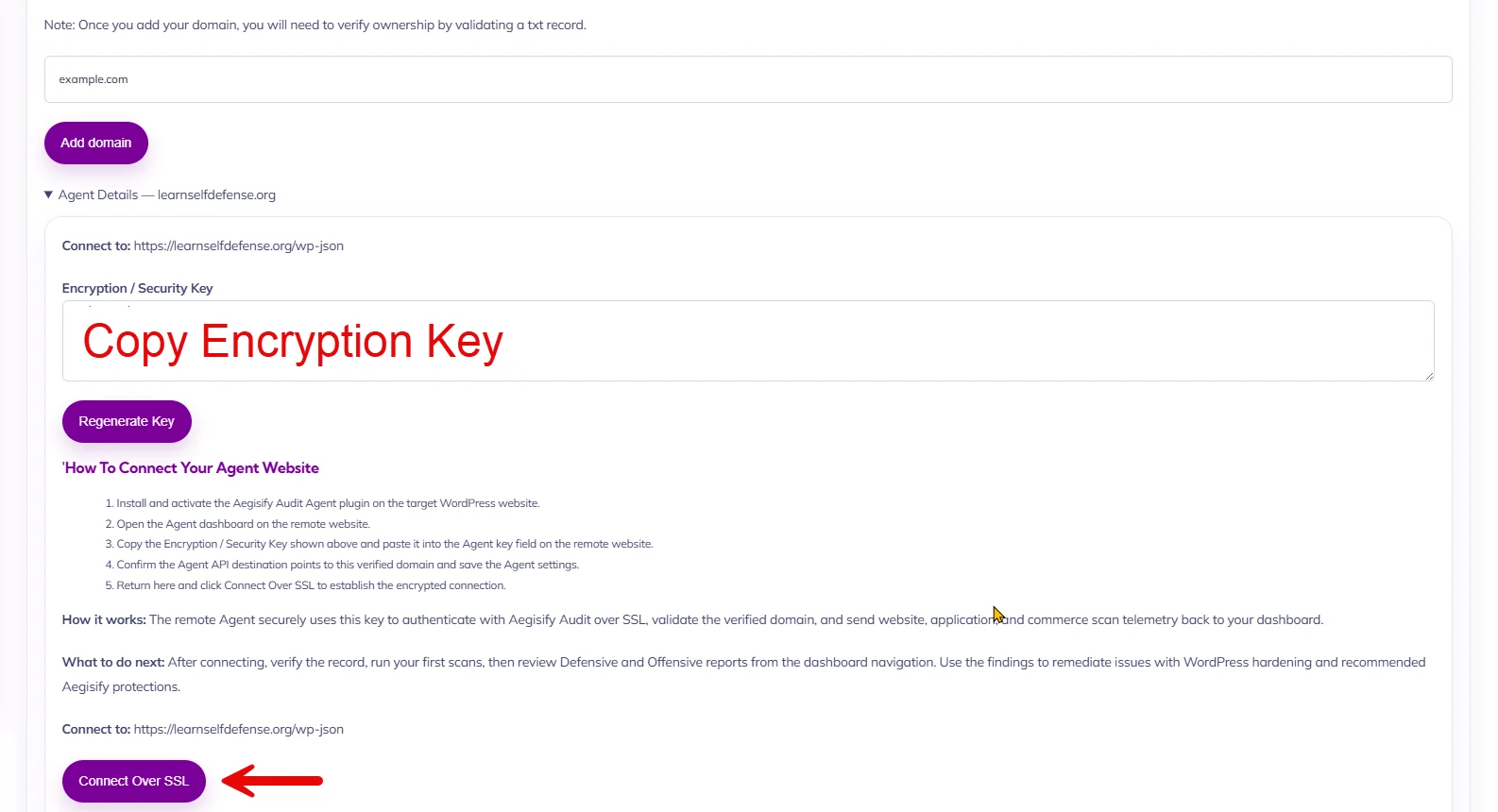
Step 3: From SaaS Domain Settings page, click to expand “Agent Details” below, copy the generated Encryption / Security Key
Step 4: Go back to Destination WordPress Website, In WordPress Admin -> Open “Aegisify Audit Agent” from the left menu and open the Agent -> Paste the Encryption / Security Key. Click the wide blue button “Save Encryption Key”.
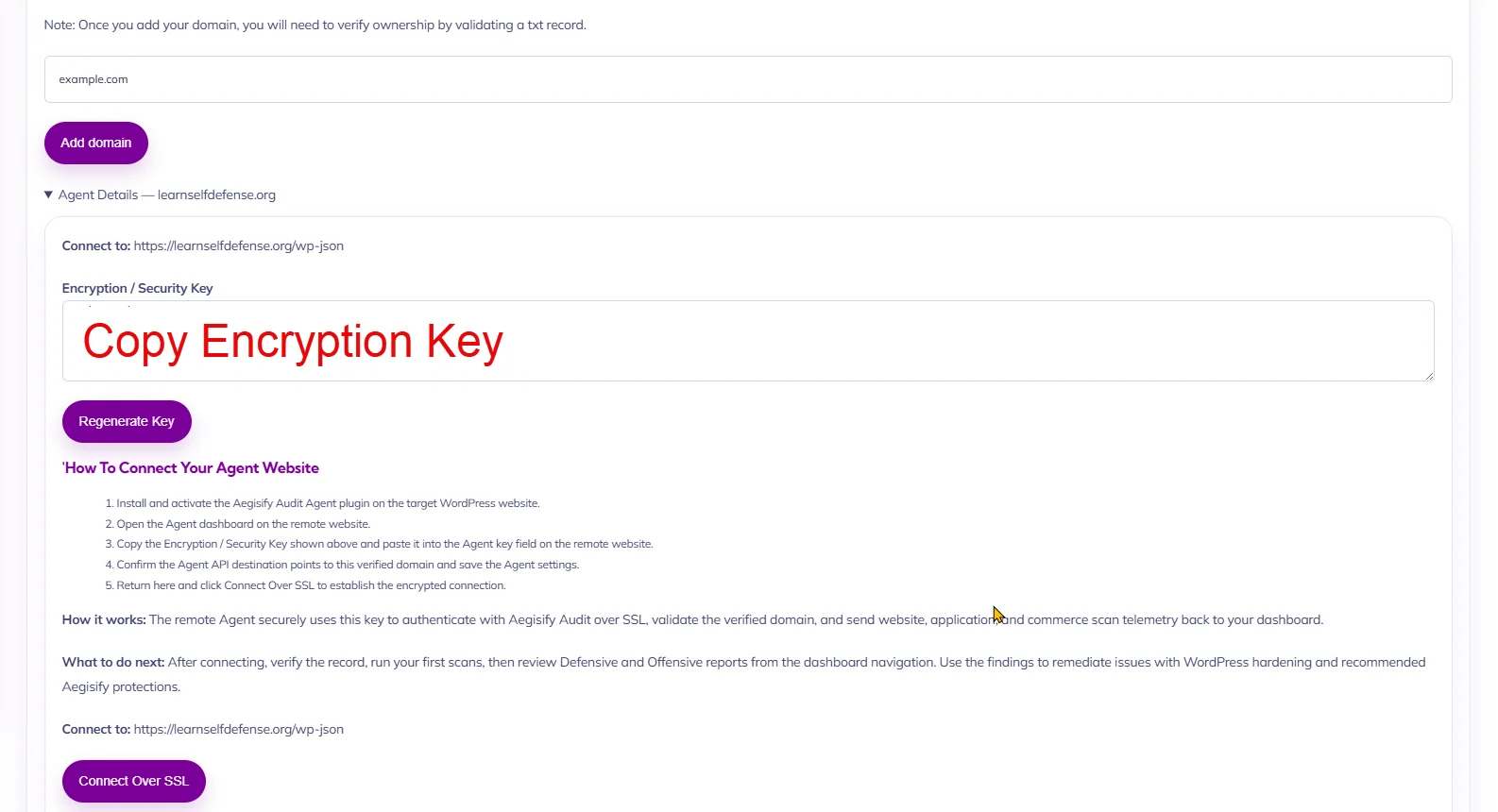
Step 5: Go back to SaaS Domain Settings page, under “Agent Details” below and click on “Connect Over SSL” and view the connectivity logs. It should say Success -> Agent Verified Succeeded.